What Is the Rich Text Element?
The Rich Text Element empowers you with advanced formatting capabilities directly within the editor. The all-in-one text box brings advanced formatting including headings, block quotes, inline code, multi-level lists, and highlight colors.
Because everything lives in a single element while using the same sidebar as the Paragraph element, you can style content faster. Unlike basic paragraph elements, it allows you to seamlessly switch text styles, add block quotes, highlight text, and insert code blocks without needing custom HTML or CSS.
Key Benefits of Using the Rich Text Element
Enhance your content creation experience with these major advantages:
Easy Formatting: Effortlessly switch between paragraphs, headings, and styles
Advanced Lists: Create organized content with various bullet styles (disc, circle, square), and numbering formats (numeric, alphabetic, Roman numerals)
Highlighting and Quotes: Emphasize important content with customizable highlights colors and block quotes
Markdown-Style Shortcuts: Type >, `code`, or ``` to auto-create quotes and code blocks
No Coding Required: Eliminate the need for third-party tools or HTML blocks, improving workflow efficiency
Zero Learning Curve: The sidebar matches the existing Paragraph element, so styling feels familiar
Advanced Formatting Features
Explore powerful formatting features within the Rich Text element to elevate your website content:
Switch Between Paragraph and Headings
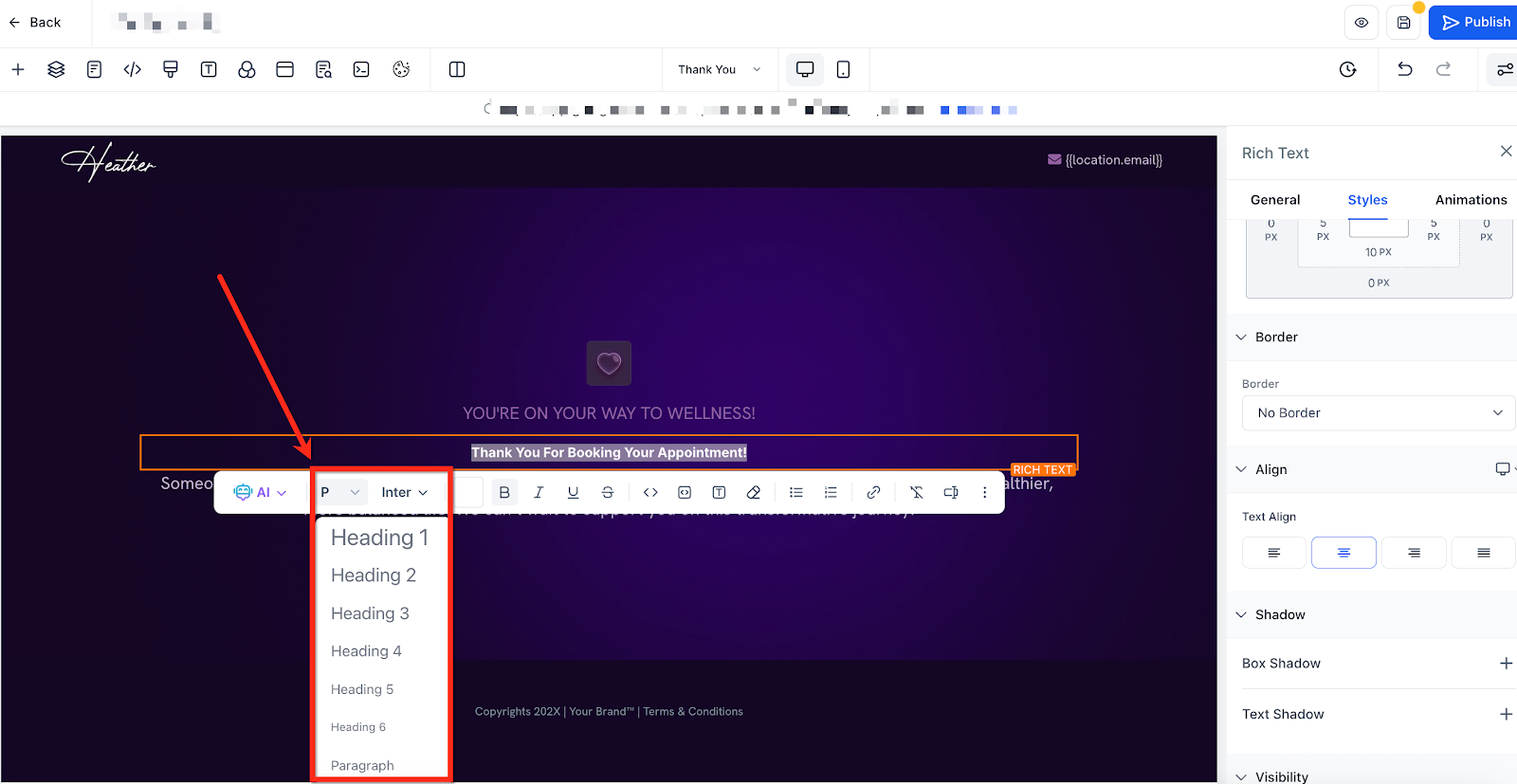
Instantly change text from paragraph to headings (H1-H6) directly within the floating toolbar:
Highlight the text in the Rich Text element
Click the Paragraph dropdown
Select your preferred heading style from the dropdown list
Create Block Quotes
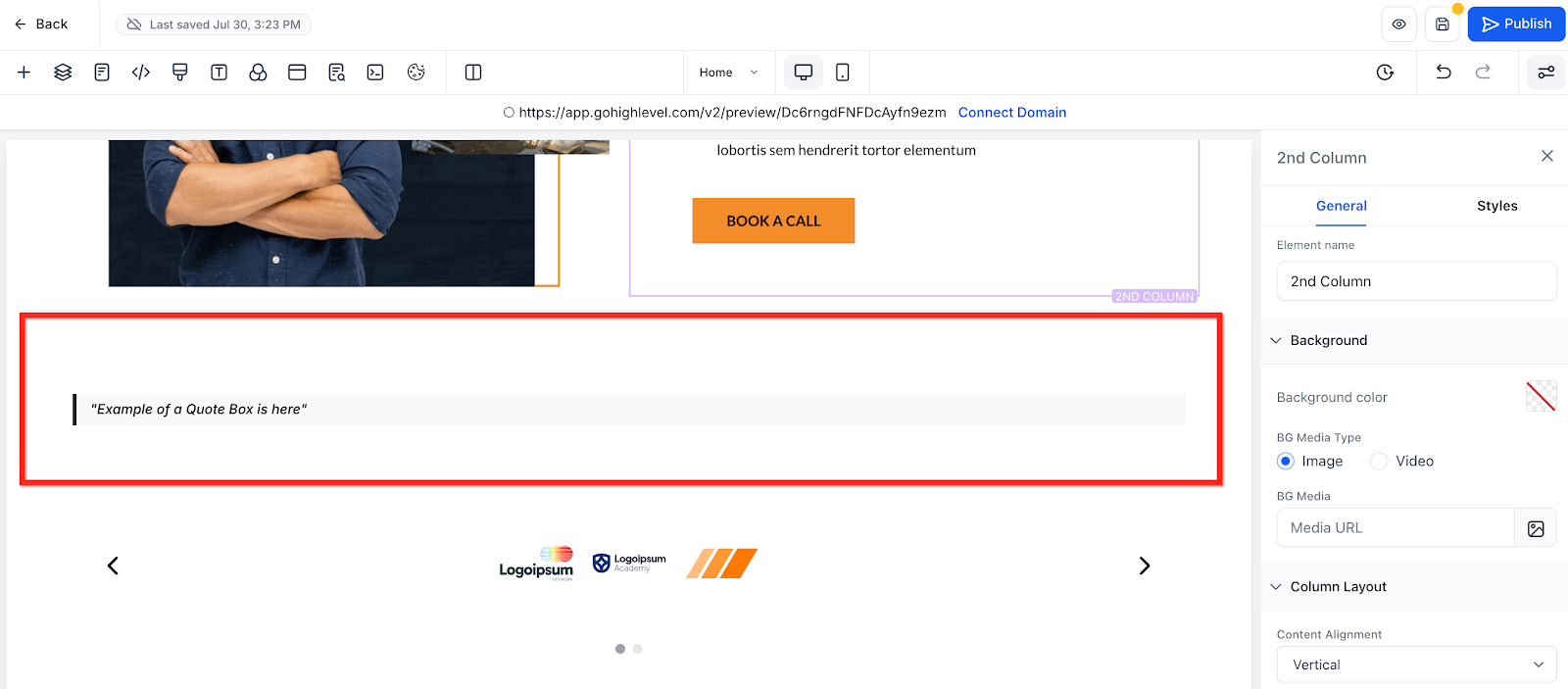
Highlight important quotes or customer testimonials clearly:
Type the greater-than symbol (>) within a Rich Text element
Hit enter to create the Block Quote
Add your text to the Block Quote
Inline Code Blocks
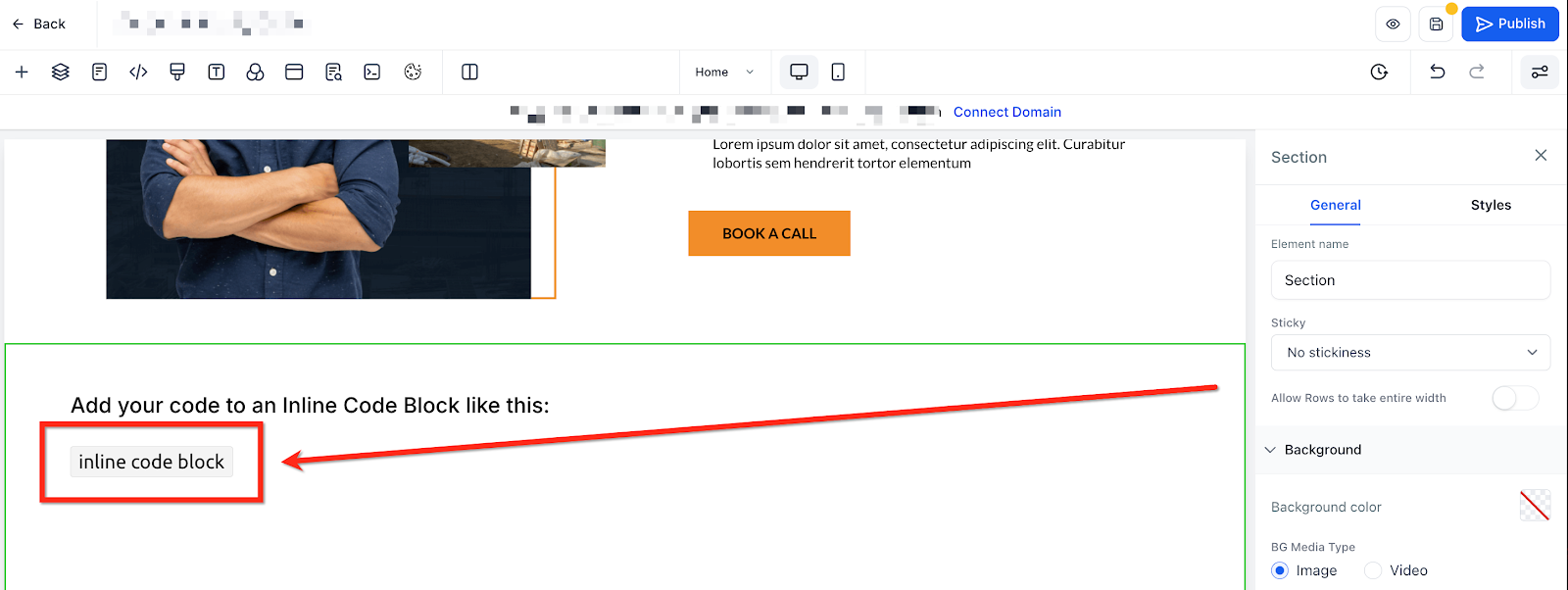
Clearly display inline code snippets within your content:
Surround the desired text with single backticks (`) within a Rich Text element
Full Code Blocks
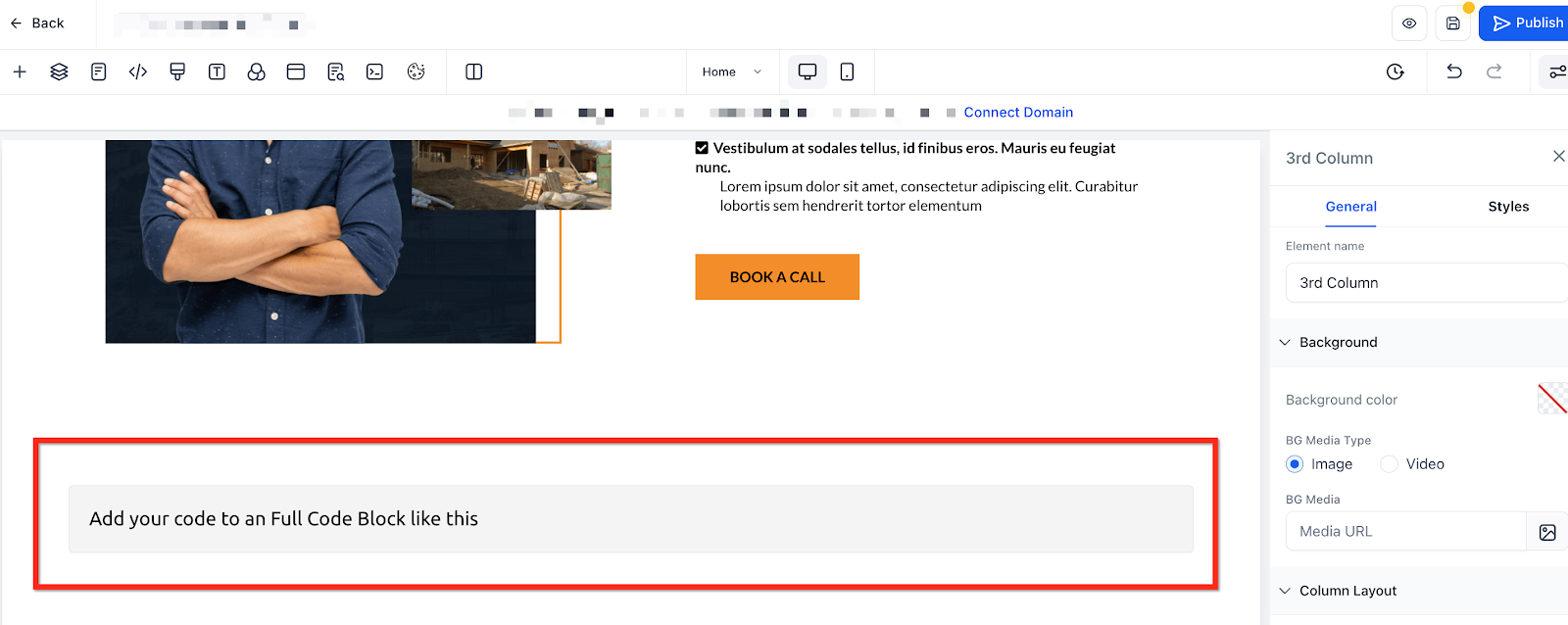
Effectively present larger code segments:
Type triple backticks (```) within a Rich Text element
Hit enter to create the Full Code Block
Add your text to the Full Code Block
Advanced and Nested Lists
Improve content structure and readability with advanced list types:
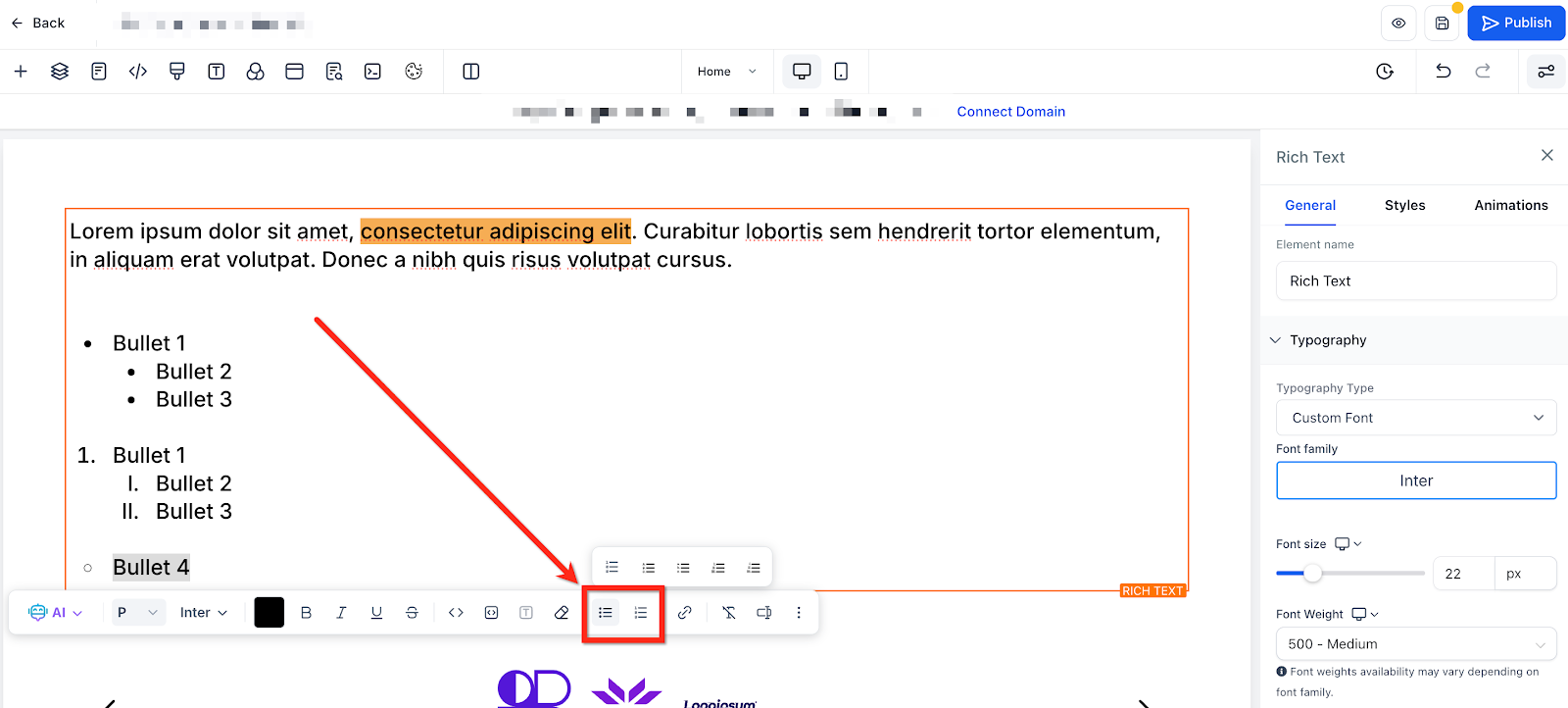
There are two ways to create a list within a Rich Text element:
Type asterisk (*) then hit space
Highlight the text and within the floating toolbar, click Unordered List or Ordered List
Click the dropdown next to the bullet to select the list type:
The options for unordered lists are:
• (Bullets)
○ (Circles)
■ (Squares)
The options for ordered lists are:
1 2 3 (Numeric)
a b c (Lower Alpha)
A B C (Upper Alpha
i ii iii (Lower Roman)
I II III (Upper Roman)
Press Tab to indent (create nested levels) or Shift + Tab to out-dent
Highlighting Text with Background Color
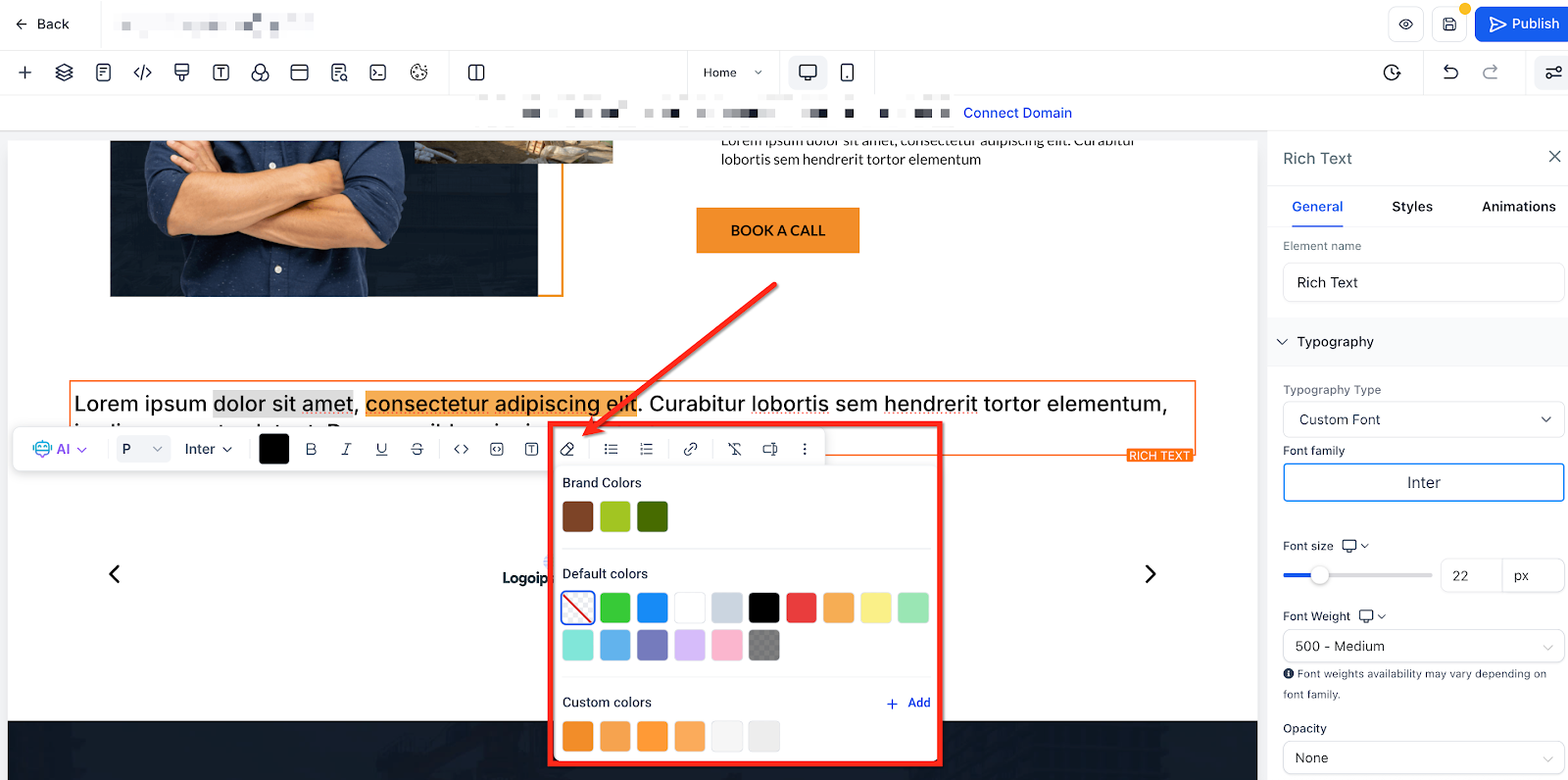
Draw attention to key phrases or points:
Select the desired text within a Rich Text Element
Click the Color Picker icon from the floating toolbar and choose your highlight color
Keyboard / Markdown Shortcuts
Sidebar Styling Options
Everything you can tweak in a Paragraph block—fonts, size, line-height, shadows, animation—works here too, so your Rich Text stays perfectly on brand.
Typography: Choose font family, weight, size, and line spacing.
Spacing: Adjust margin and padding for desktop, tablet, and mobile.
Effects: Add drop shadows or entrance animations.
Visibility: Show or hide the element on specific devices.
Advanced: Apply a custom CSS class for theme-wide overrides.
List Item Spacing (Rich Text & Bullet Lists)
List Item Spacing controls the vertical space between individual list items, independent of text line height. Adjusting this value improves scannability for longer lists and ensures comfortable spacing on different devices.
Key benefits
Readability: Reduces visual clutter in dense lists.
Mobile comfort: Adds breathing room for small screens.
Precision: Fine-tunes spacing without altering paragraph line height.
How it works
Select a Rich Text or Bullet List element on the page.
Open the Style panel → locate List Item Spacing next to Line Height.
Drag the slider or enter a value to increase/decrease space between list items.
Tip: Use Line Height for paragraph spacing inside a list item, and List Item Spacing for the gap between items.
Supported elements: Rich Text, Bullet List. *(Additional editors—Email/Blog—NEEDS CONFIRMATION before listing here.)
How to Add a Rich Text Element
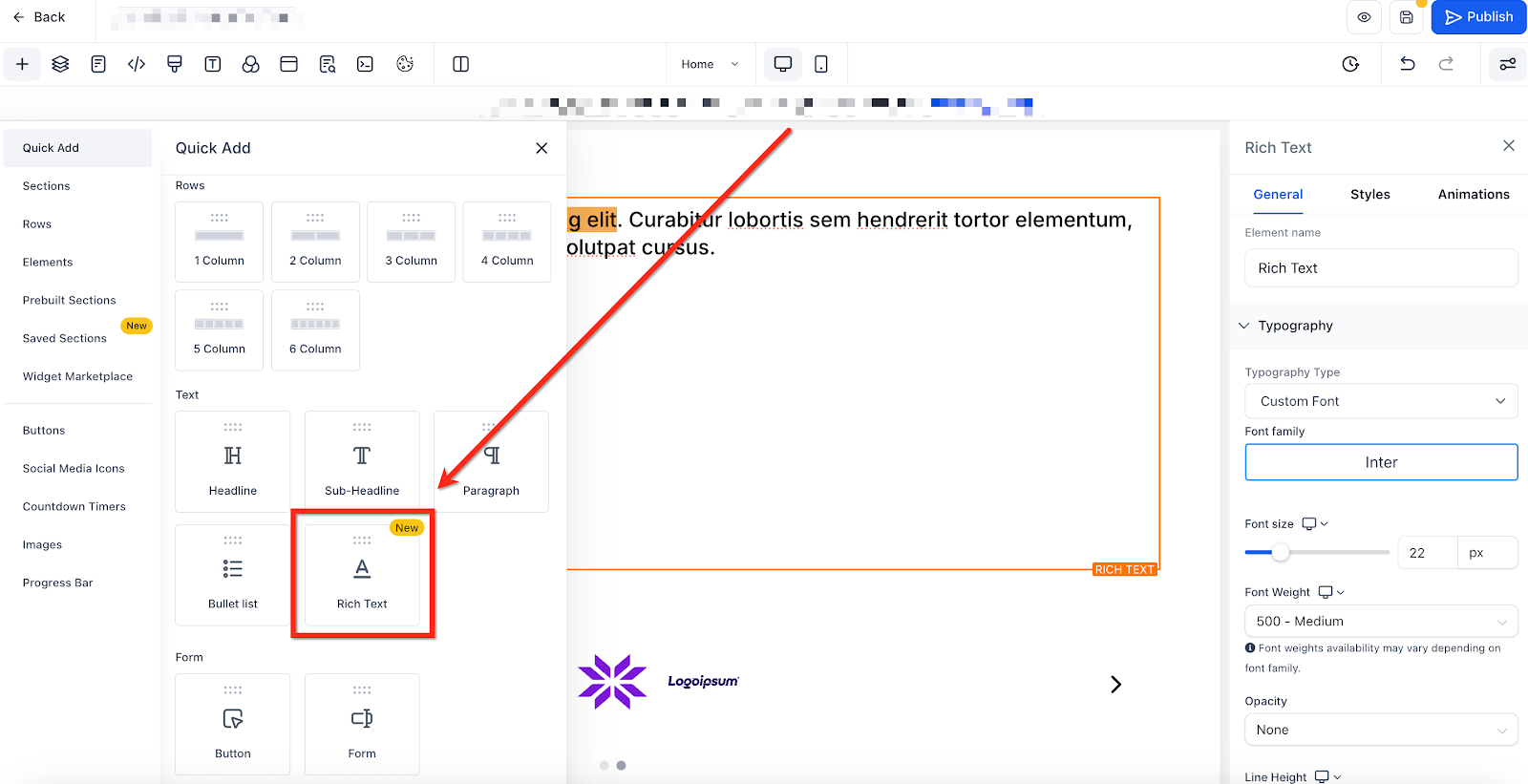
Follow these three quick steps to get the element onto your canvas and start typing:
Open the funnel or website Builder for your page
In the left panel, click Quick Add → Rich Text
Drag the element into any row or column and click once to begin editing
Frequently Asked Questions
Q: Can I convert an existing Paragraph element into Rich Text?
No. The text must be a Rich text element to switch between a heading and paragraph
Q: How do I create nested lists?
After creating your main list item, press "Tab" or use the indent option to create nested sub-items.
Q: Can I use the Rich Text element and Paragraph element interchangeably when writing paragraphs?
Yes, but Rich Text provides advanced formatting tools not available in the standard Paragraph element.
Q: Will global fonts and colors apply automatically?
Absolutely. The element inherits your global theme settings.
Was this article helpful?
That’s Great!
Thank you for your feedback
Sorry! We couldn't be helpful
Thank you for your feedback
Feedback sent
We appreciate your effort and will try to fix the article