What are Click-to-Call, Click-to-Text, and Click-to-Email Links and Buttons?
Clickable links that initiate a phone call, text message, or email make it easy for users to take immediate action. When configured correctly, clicking these links will open the user’s phone dialer, SMS app, or default email client with pre-filled info. These links are commonly used in Funnels and Websites to improve user experience and boost conversions.
Key Benefits of Using Click-to Actions
Click-to links simplify communication by making it easy for leads to reach out with a single tap.
One-Tap Communication: Users can instantly call, text, or email without copying or typing
Higher Mobile Engagement: Mobile users are more likely to interact with clickable actions
Time-Saving for Leads: Auto-fills fields like phone number, message body, or email content
Trigger-ready automation: Can be combined with Trigger Links for follow-up workflows
Flexible CTA design: Click-to links can be added to both text and button elements
How to Add Click-to-Call Links
To create a link that people can click/tap to initiate a phone call:
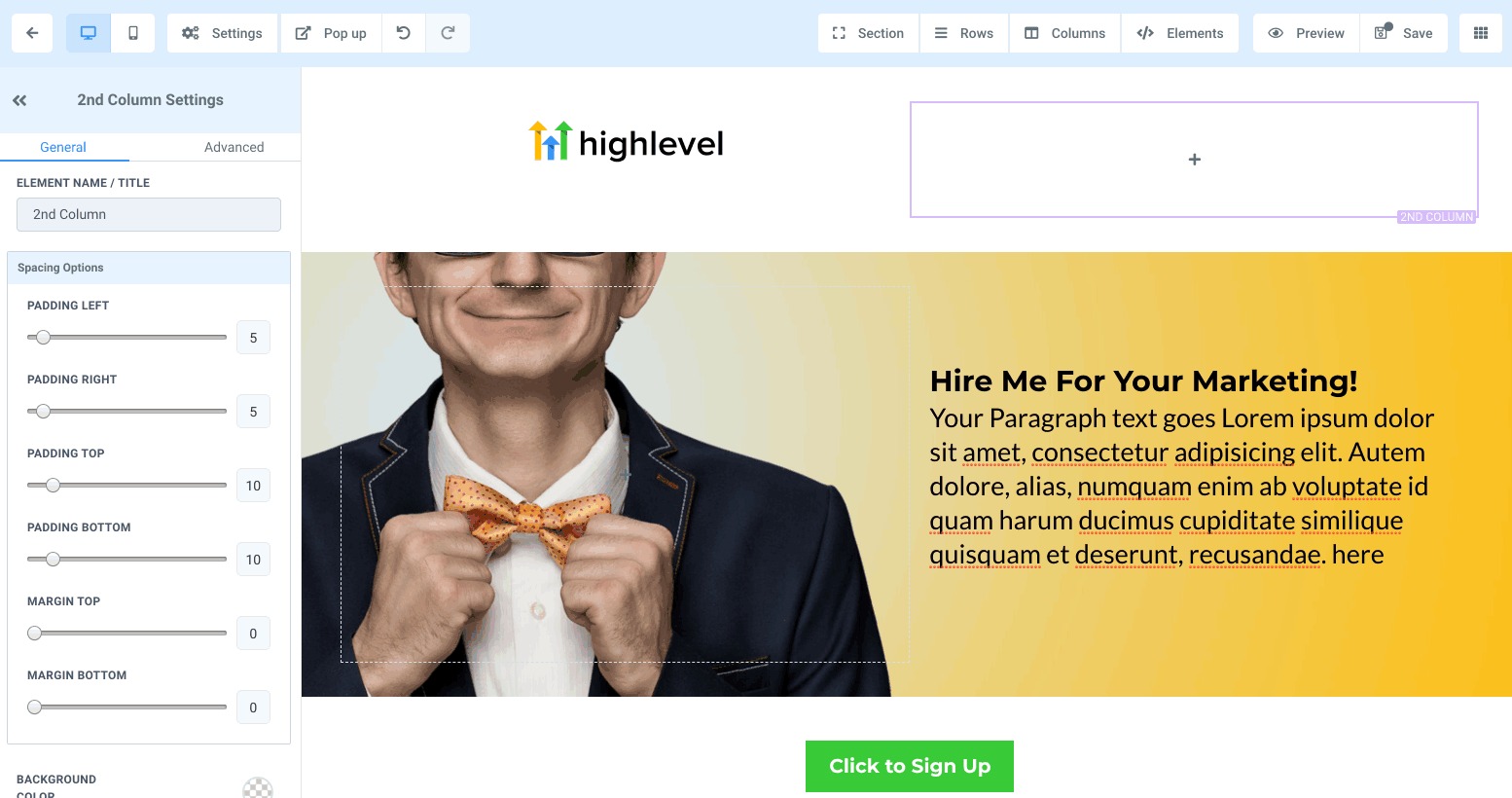
MarketingPlex the text in the funnel or website builder
Click the link icon
Enter your link using the format: tel:+1234567890
Click Save and preview/test it on a mobile device
How to Add Click-to-Email Links
To create a link that people can click/tap to initiate an email message:
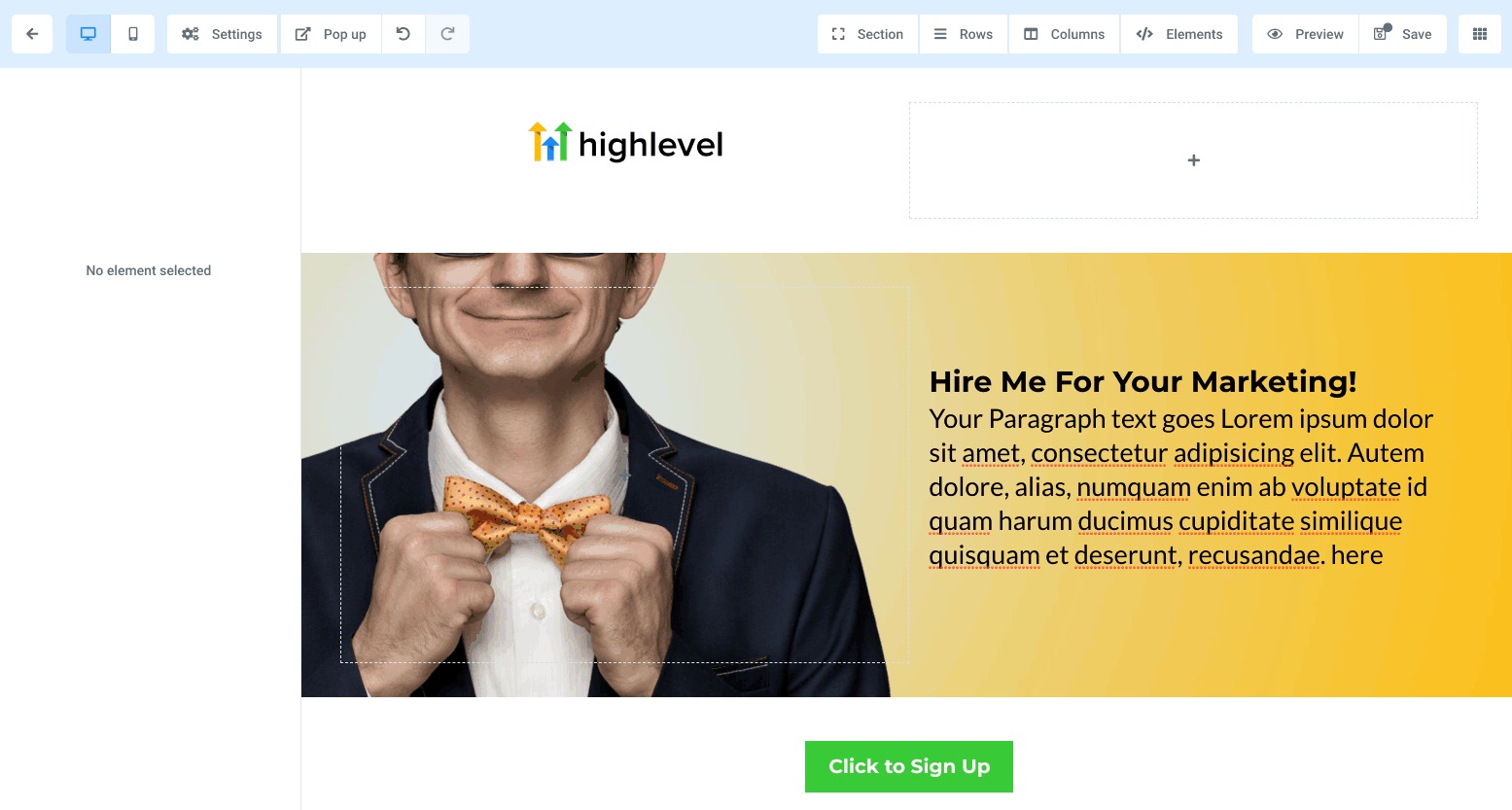
Highlight the text in the funnel or website builder
Click the link icon
Enter your link using the format: mailto:name@email.com
Click Save and preview/test the link
How to Add Click-to-Call Buttons
To create a link that people can click/tap to initiate a phone call:
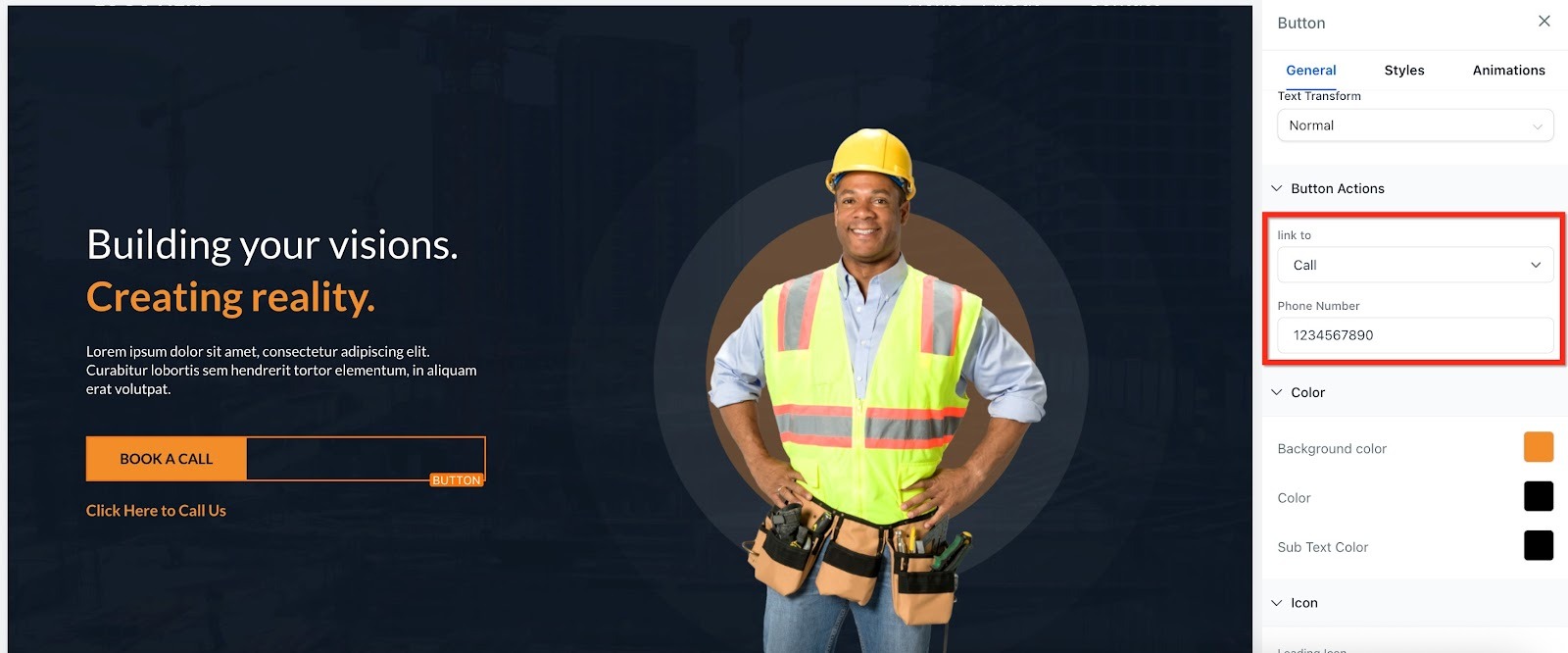
Click on the button in the funnel or website builder
On the right side under Button Actions, use the Link to dropdown to select Call
Enter the phone number
Click Save and preview/test the button
How to Add Click-to-Text Buttons
To create a link that people can click/tap to initiate a phone call:
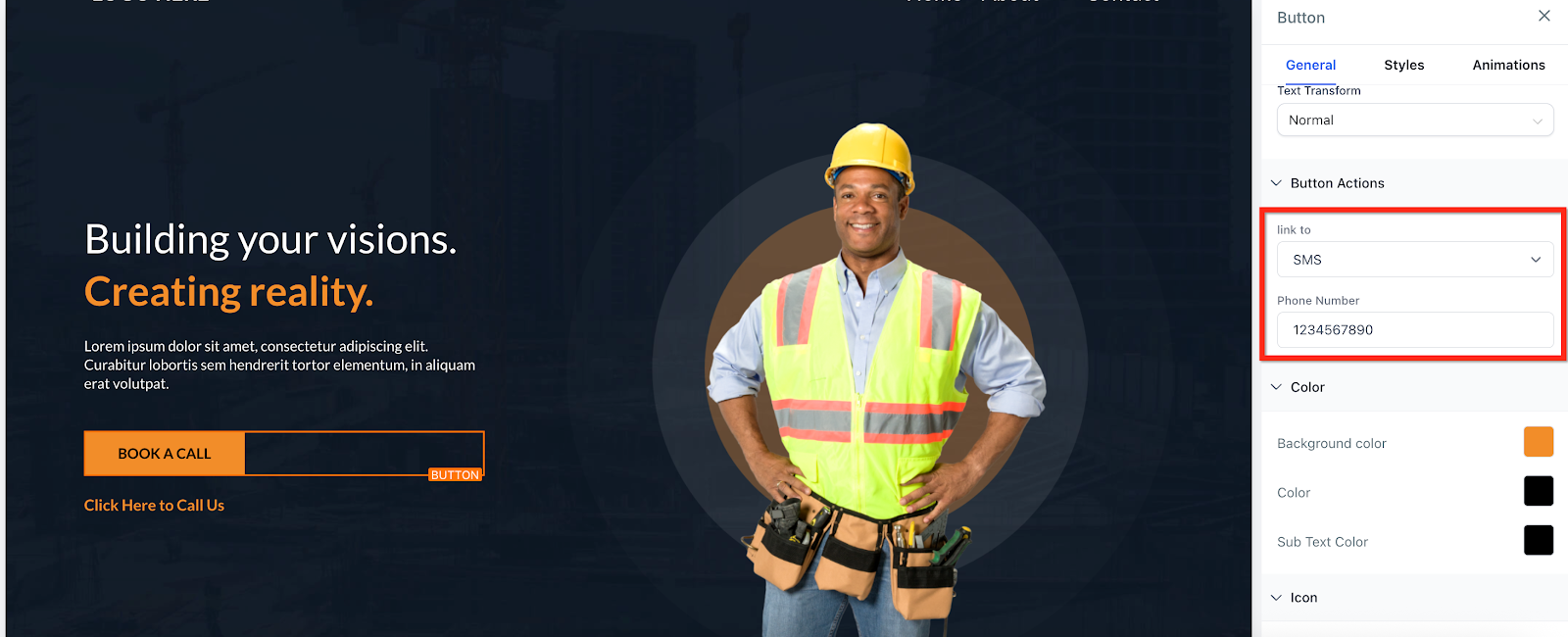
Click on the button in the funnel or website builder
On the right side under Button Actions, use the Link to dropdown to select SMS
Enter the phone number
Click Save and preview/test the button
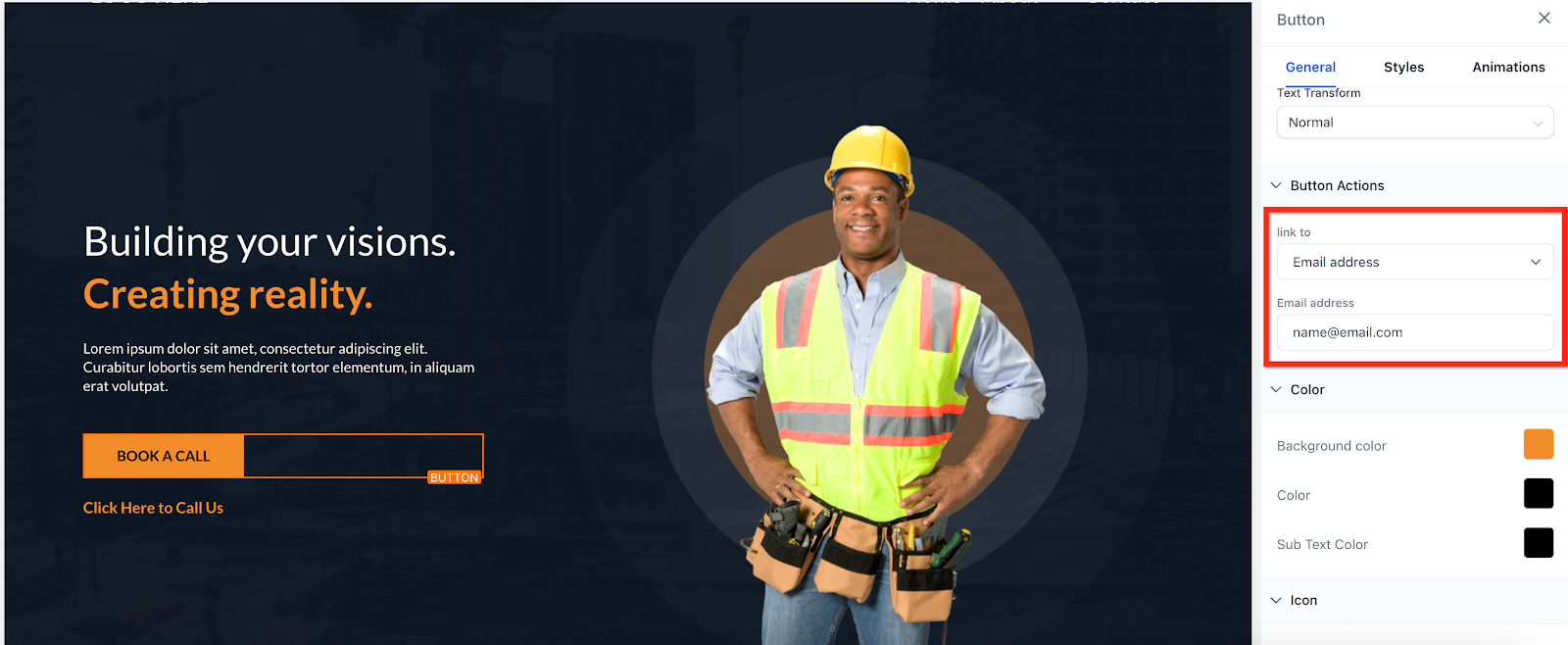
How to Add Click-to-Email Buttons
To create a link that people can click/tap to initiate a phone call:
Click on the button in the funnel or website builder
On the right side under Button Actions, use the Link to dropdown to select Email
Enter the Email
Click Save and preview/test the button
Was this article helpful?
That’s Great!
Thank you for your feedback
Sorry! We couldn't be helpful
Thank you for your feedback
Feedback sent
We appreciate your effort and will try to fix the article