What Are Heading Tags?
Heading tags define the structure and importance of text on a web page. H1 is typically used for the main page title, while H2s and H3s are used for section and sub-section titles. These tags help organize content hierarchically, improve user readability, and guide search engines in understanding page layout.
Key Benefits of Using Heading Tags
Using the correct heading tags isn't just about making text bigger. It enhances page performance, readability, and ranking potential. Here’s how:
Improves SEO by signaling content hierarchy to search engines
Organizes content in a readable structure
Responsive across mobile and desktop layouts
Improves visual clarity helping visitors quickly scan and understand key sections
How To Change Heading Tags in Funnels or Websites
You can change the heading tags on a funnel or website page by selecting the heading text in an element and then clicking the heading tag button on the hovering formatting bar and choosing your desired heading tag. Follow the steps below to learn how to change headings.
Step 1: Open the Page in the Website Builder
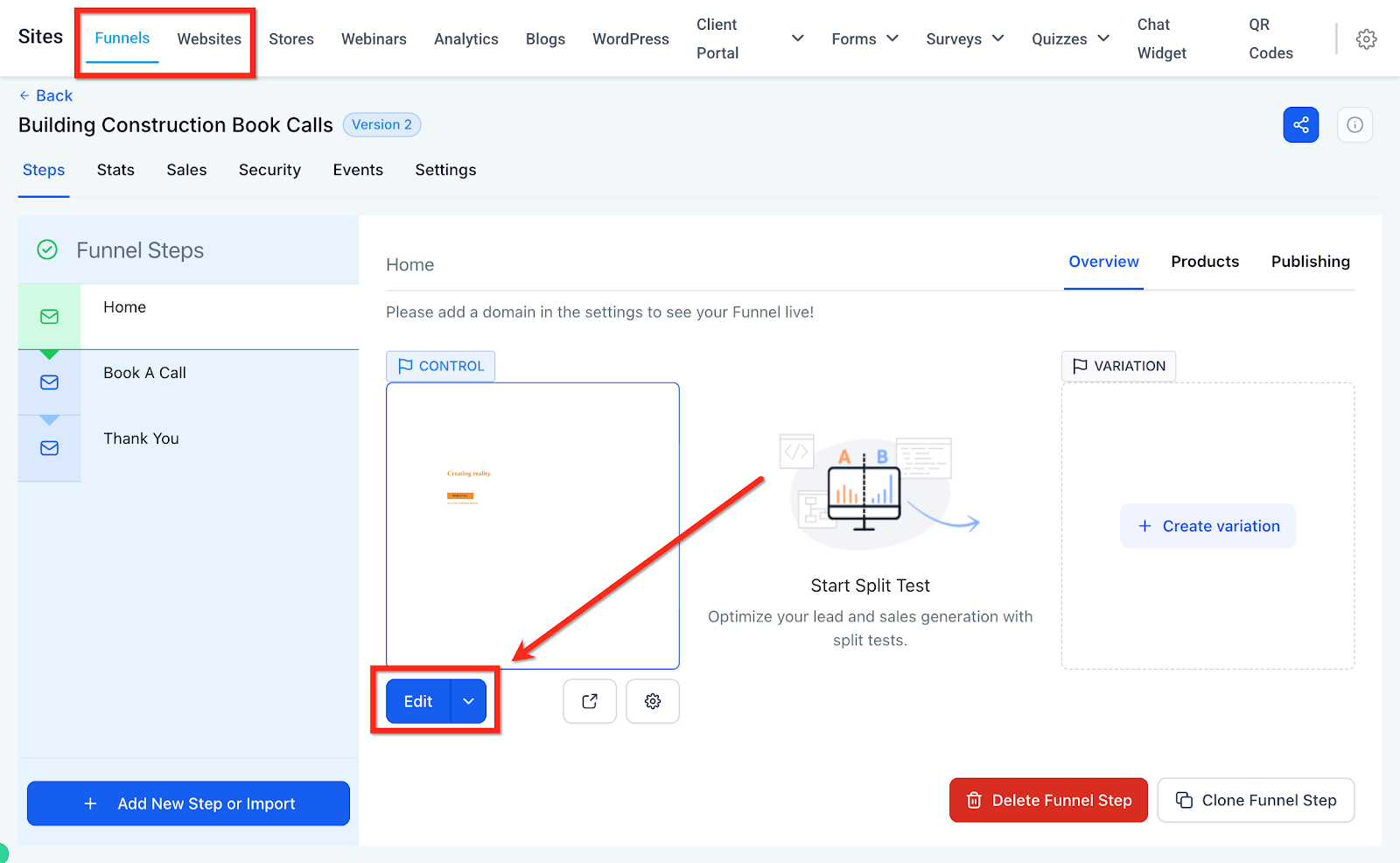
From your sub account, navigate to Sites > Funnels or Sites > Websites
Click into the website/funnel then select step/page you would like to edit
Click blue button labeled Edit Page to open the site editor
Step 2: Edit the Heading
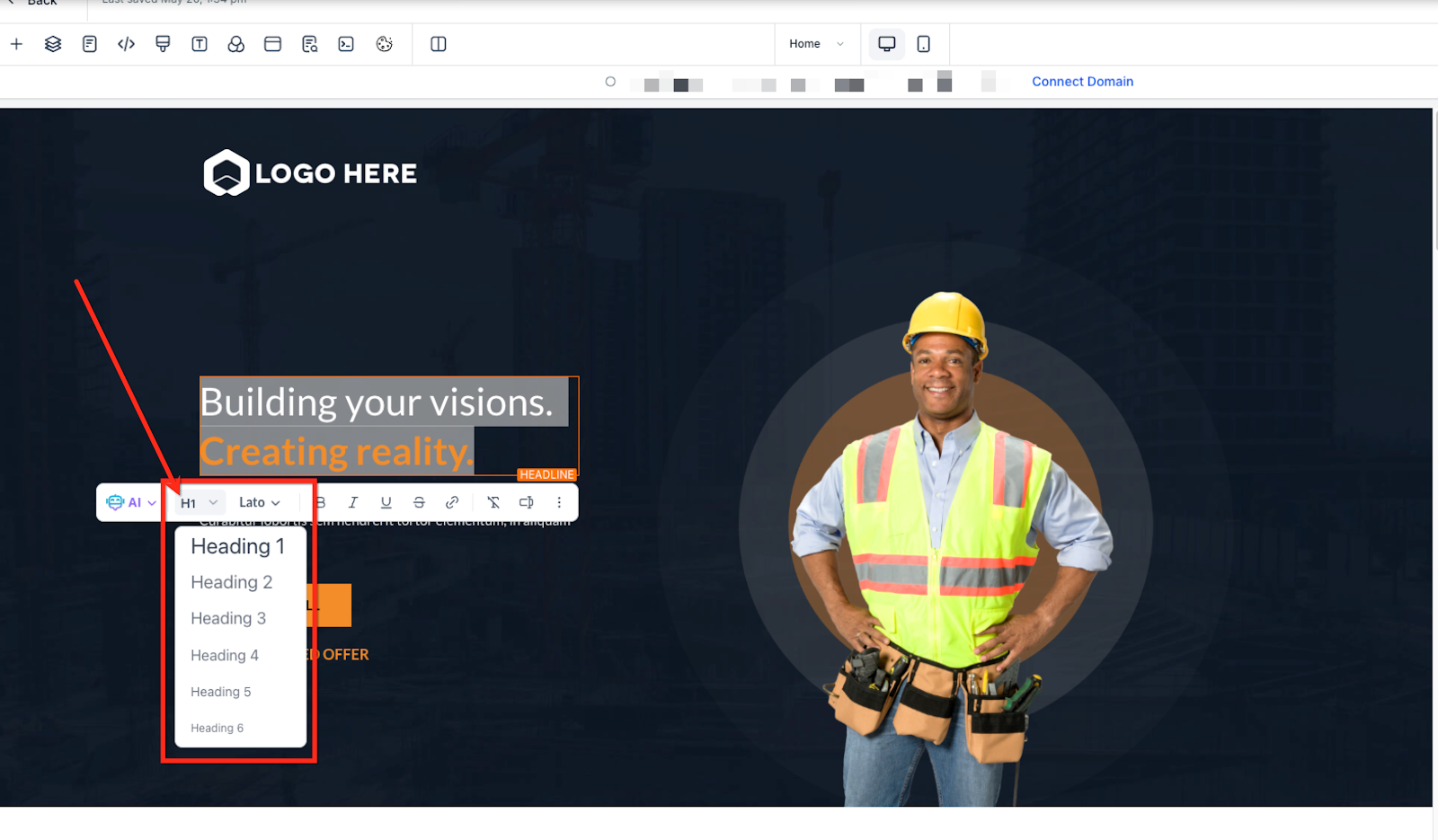
Highlight the heading text you'd like to change. A formatting toolbar will appear below the selected text
On the toolbar, click the heading dropdown and choose the desired heading tag (H1, H2, etc.)
Frequently Asked Questions
Q: What if the heading dropdown isn’t visible?
Ensure the text that you are editing is a heading and not plain text. The dropdown will only show for headings.
Q: Can I use multiple H1 tags?
It’s possible, but not recommended. One H1 per page provides clarity and better SEO.
Q: Does changing a heading tag change how it looks?
Not always. Heading styles can be customized using CSS. It’s the tag itself (H1–H6) that affects SEO and structure. Even if two headings look visually identical, using different tags (H1 vs. H2) helps search engines and screen readers understand the hierarchy of your content.
Q: Are heading tags mobile-responsive?
Yes. You can preview and style headings per device in the website builder.
Was this article helpful?
That’s Great!
Thank you for your feedback
Sorry! We couldn't be helpful
Thank you for your feedback
Feedback sent
We appreciate your effort and will try to fix the article